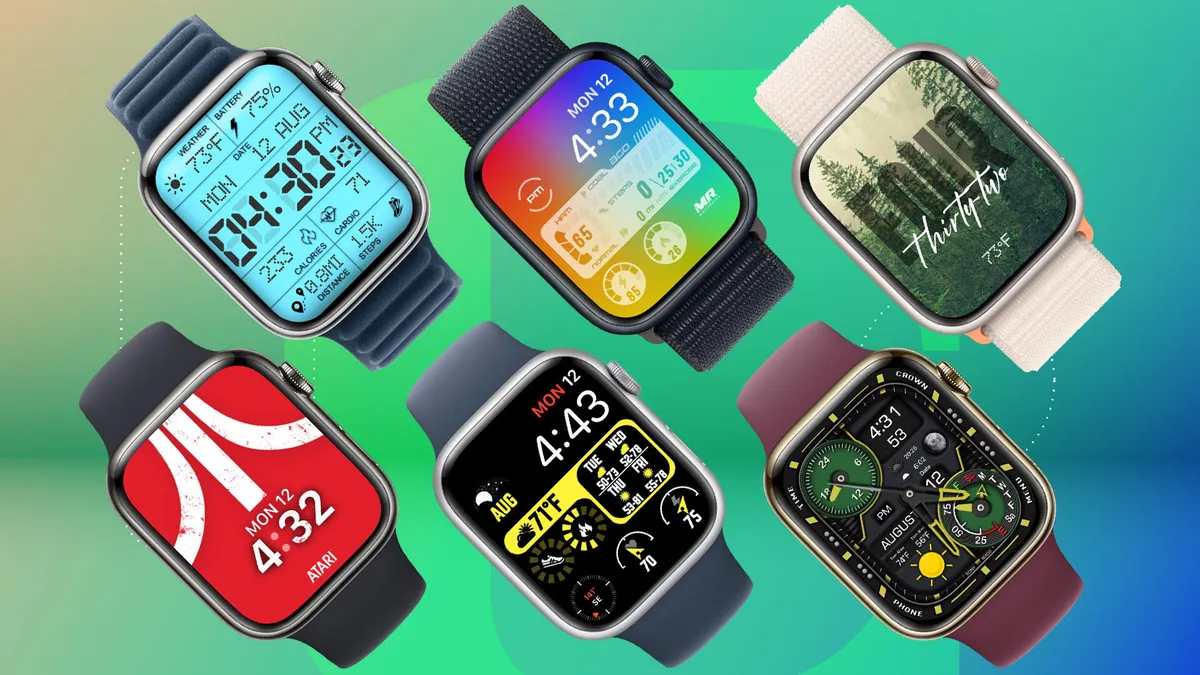
Learn how to customize watch faces on Wear OS and watchOS to boost productivity, fitness tracking, and personal style.
Smartwatches in 2026 aren’t just about tracking your steps or checking notifications — they’re your personal health dashboard, AI assistant, and style statement all in one.
Look, I’ve worn devices like the Samsung Galaxy Watch 8 and the Apple Watch Series 11 for two weeks straight so you don’t have to guess. And here’s the real talk: customizing your watch face is the fastest way to turn a generic smartwatch into a powerful, personalized fitness tool.
In this deep-dive guide from wearfit.xyz, we’ll walk you through exactly how to customize watch faces on Wear OS and watchOS, while unlocking better access to features like ECG monitoring, Heart Rate Variability (HRV), SpO2 tracking, and advanced Bio-sensors.
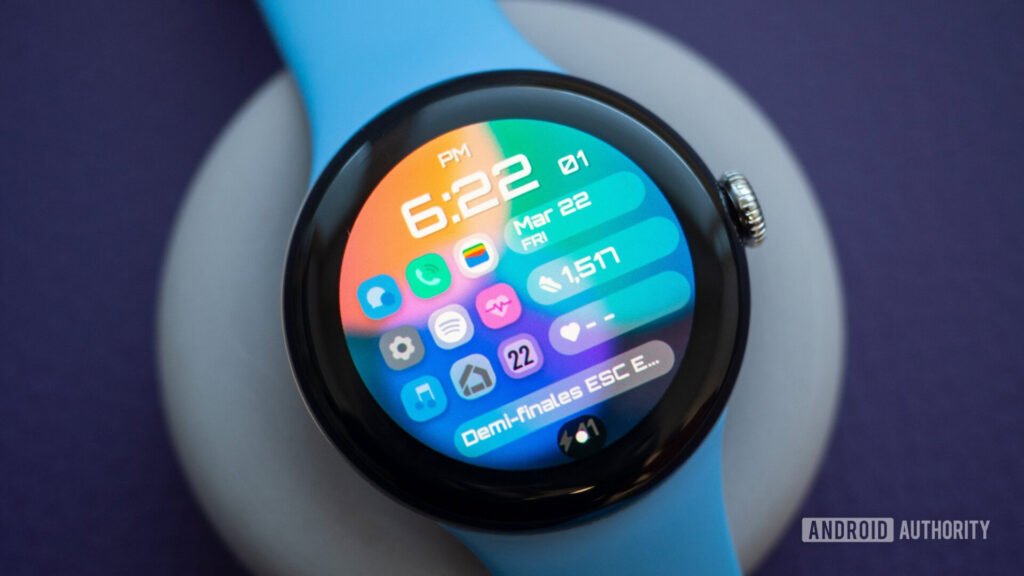
Why Watch Face Customization Matters in 2026
Modern wearables are powered by:
- AI-driven health insights
- Continuous Bio-sensor monitoring
- Smart fitness coaching
- Integrated ecosystems (Google Fit, Apple Health)
Your watch face acts as your control center — the place where all critical data lives.
A well-customized face can show:
- Real-time heart rate
- HRV recovery score
- SpO2 levels
- Activity rings or goals
- Sleep insights
A poorly customized one? Just tells time.
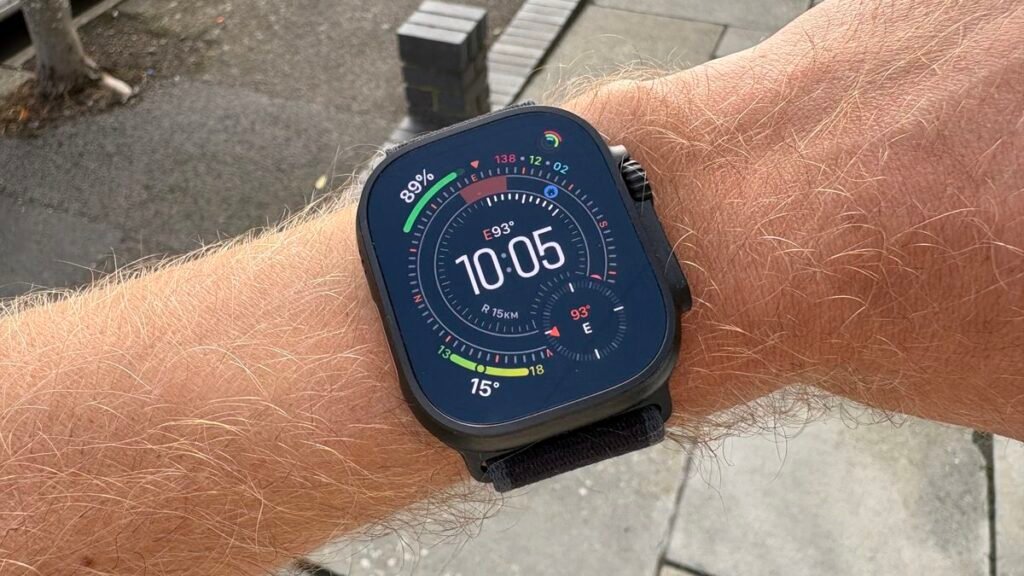
Wear OS vs watchOS: Customization Comparison
| Feature | Wear OS | watchOS |
|---|---|---|
| Custom Face Variety | Extensive (3rd-party support) | Premium curated options |
| Complications (Widgets) | Highly flexible | Highly optimized |
| AI Smart Faces | Emerging | Advanced |
| Health Data Integration | Google Fit focused | Apple Health optimized |
| Ease of Use | Moderate | Very user-friendly |
Key Insight: Wear OS offers more freedom, while watchOS delivers a more refined, optimized experience.
Understanding Watch Faces and Complications
Before we customize, let’s clarify:
What Is a Watch Face?
The main screen of your smartwatch — design + layout.
What Are Complications?
Mini-widgets that display live data like:
- Heart rate
- HRV
- Weather
- Calendar
- SpO2
- Battery
In 2026, complications are powered by AI and Bio-sensors, meaning they update dynamically based on your activity and health patterns.
Step-by-Step: How to Customize Watch Faces on Wear OS
Let’s start with Wear OS.
Step 1: Long Press on Your Watch Screen
- Tap and hold your current watch face
- Swipe left/right to browse options
Step 2: Tap “Customize”
- Select colors, layout, and style
- Choose minimal or data-heavy designs
Step 3: Add Complications
Here’s where the magic happens:
- Tap complication slots
- Assign features like:
- Heart rate
- HRV
- SpO2
- Steps
- Weather
Pro tip: Don’t overload your screen — balance design and function.
Step 4: Install New Watch Faces
From the Google Play Store:
- Search for watch faces
- Install directly to your watch
Devices like the Google Pixel Watch 3 support advanced third-party faces with AI integration.
Step 5: Sync With Google Fit
Connect your watch face data with:
- Google Fit
This ensures accurate fitness tracking and real-time updates.
Step 6: Optimize for Battery Life
Choose:
- Dark themes (OLED-friendly)
- Fewer animations
- Limited real-time complications
This improves battery efficiency significantly.
Step-by-Step: How to Customize Watch Faces on watchOS
Now let’s move to Apple’s ecosystem.
Step 1: Press and Hold the Watch Face
- Swipe to browse available faces
- Tap “Edit”
Step 2: Customize Style and Colors
Apple offers:
- Clean, premium designs
- Dynamic color palettes
- Modular layouts
Step 3: Add Complications
Tap each slot and choose:
- ECG monitoring
- Heart Rate Variability (HRV)
- Activity rings
- SpO2
- Calendar
watchOS excels at making these feel seamless.
Step 4: Use the iPhone for Advanced Customization
Open the Watch app on your iPhone:
- Browse new faces
- Customize layouts
- Sync instantly
Step 5: Explore Smart Stack (2026 Feature)
Smart Stack uses AI to:
- Show relevant widgets automatically
- Adapt based on time and activity
- Highlight health insights
This is where Apple is ahead.
Step 6: Save Multiple Watch Faces
Create different profiles:
- Workout mode
- Sleep tracking
- Daily productivity
Switching takes seconds.
Real-World Testing Insights
After using both systems daily, here’s what actually matters:
- Wear OS gives more creative freedom
- watchOS gives better optimization
- Too many complications = clutter
- Minimal faces improve focus and battery
Also, here’s something most users ignore:
Your watch face should change based on your lifestyle.
Morning run? Show fitness data.
Work hours? Show calendar and notifications.
Sleep? Minimal distractions.
Best Watch Face Setup for Fitness Enthusiasts
Here’s my go-to layout:
Top Complications
- Heart rate
- HRV
Center
- Time (clean, readable)
Bottom Complications
- Steps
- SpO2
- Workout shortcut
This setup gives maximum value without clutter.
Common Mistakes to Avoid
Overloading Complications
Too much data reduces usability.
Ignoring Battery Impact
Live data drains battery faster.
Not Updating Watch Faces
New updates improve features and efficiency.
Using Default Settings
Your missing out on customization power.
The Role of AI in Watch Face Customization (2026)
This is where things get exciting.
Modern smartwatches now use:
- Context-aware UI
- Predictive widget display
- Adaptive layouts
- Health-driven suggestions
For example:
- Showing HRV after workouts
- Displaying stress data during busy hours
- Highlighting sleep insights in the morning
Your watch face is no longer static — it’s evolving with you.
Watch Face Optimization Checklist
Before you finish:
- Choose a clean, readable design
- Add only essential complications
- Sync with health apps
- Optimize for battery
- Create multiple profiles
Follow this, and your smartwatch becomes significantly more useful.
Final Verdict: Is Customization Worth It?
Absolutely.
Learning how to customize watch faces on Wear OS and watchOS transforms your smartwatch from a gadget into a personal health command center.
It improves:
- Accessibility
- Fitness tracking
- Productivity
- Overall user experience
And once you dial it in, you’ll wonder how you ever used the default setup.
Ready to Upgrade Your Smartwatch Experience?
If you want more expert insights, real-world testing, and deep wearable tech guides — visit wearfit.xyz.
It’s the ultimate destination for anyone serious about optimizing their smartwatch, from ECG monitoring to AI-powered fitness tracking.
Start customizing smarter. Track better. And turn your wearable into something that actually works for your life.
Because your smartwatch should adapt to you — not the other way around.