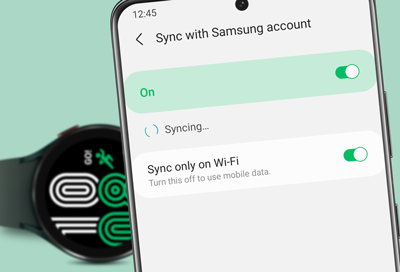
If your smartwatch keeps throwing a frustrating “Sync Failed” error, you’re not alone—and more importantly, you’re not stuck. In 2026, wearables have evolved into powerful health companions with advanced Bio-sensors, ECG monitoring, SpO2 tracking, and Heart Rate Variability (HRV) insights. But all that innovation depends on one thing: reliable syncing between your watch and smartphone.
Look, I’ve worn multiple smartwatches for weeks at a time so you don’t have to guess—and I can tell you this: most sync issues aren’t hardware failures. They’re fixable glitches caused by connectivity, permissions, or ecosystem conflicts.
This guide breaks down everything you need to know to troubleshoot “Sync Failed” errors and get your wearable ecosystem running smoothly again.
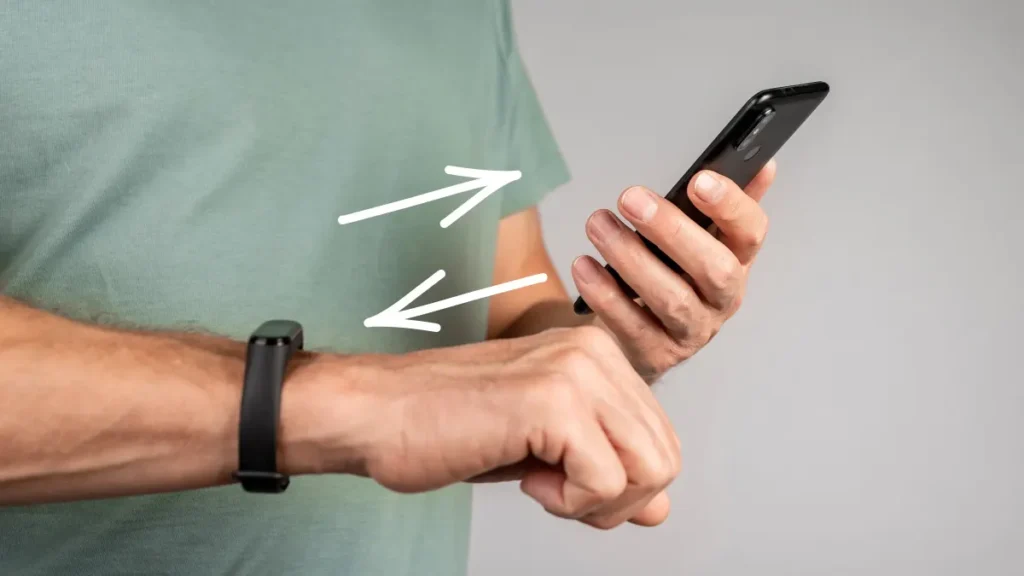
Why Syncing Matters More Than Ever in 2026
Modern smartwatches don’t just count steps—they act as continuous health monitors. Devices now track:
- Real-time ECG signals
- Blood oxygen (SpO2) fluctuations
- Sleep cycles with AI-powered analysis
- Continuous glucose monitoring (in select models)
- HRV for stress and recovery insights
All of this data is processed through platforms like Google Fit and Apple Health, making synchronization critical.
When syncing fails, your data pipeline breaks—and that means lost insights, inaccurate trends, and missed health alerts.
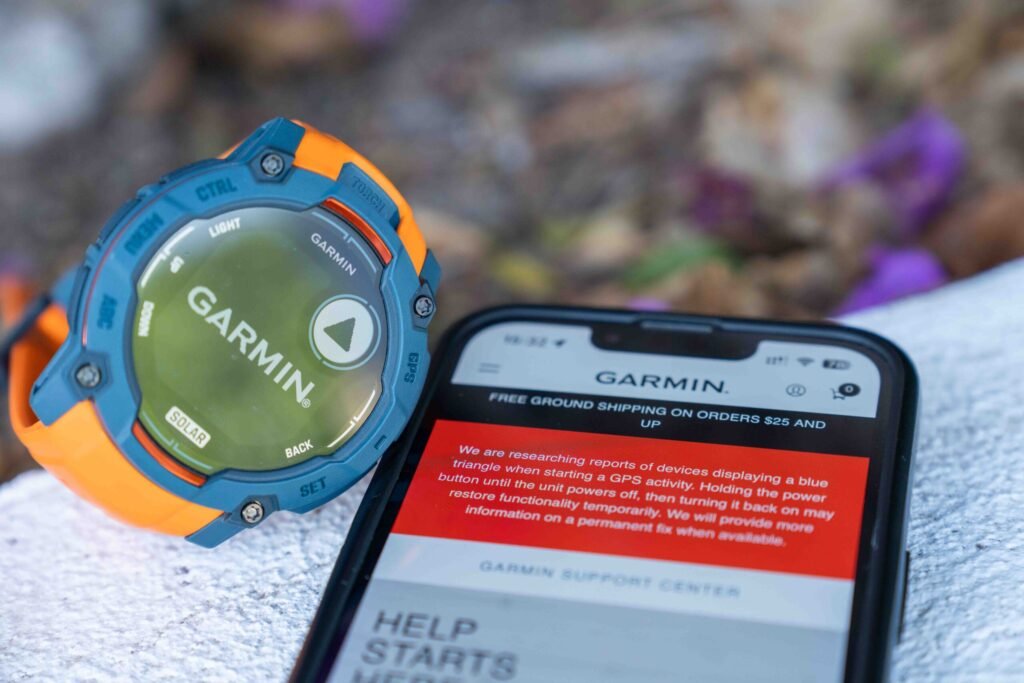
Common Causes of “Sync Failed” Errors
Before jumping into fixes, understand the root causes:
1. Bluetooth Connectivity Issues
Weak or unstable Bluetooth is the #1 culprit.
2. App Permission Conflicts
Health apps often require multiple permissions—missing even one can disrupt syncing.
3. Software Version Mismatch
Outdated firmware or apps can cause compatibility issues.
4. Battery Optimization Restrictions
Aggressive power-saving modes can block background syncing.
5. Server or Cloud Sync Delays
Sometimes the issue isn’t your device—it’s the cloud service backend.
6. Data Overload or Corruption
Large datasets (especially from HRV or sleep tracking) can slow or break sync proccess.
Quick Comparison: Sync Ecosystems in Popular Platforms
| Feature | Apple Ecosystem | Android Ecosystem |
|---|---|---|
| Sync Stability | Very High | Moderate–High |
| Health Data Integration | Seamless | App-dependent |
| Background Sync Efficiency | Excellent | Varies by brand |
| AI Health Insights | Advanced | Rapidly improving |
| Third-party Compatibility | Limited | Extensive |
Here is the real talk: Apple’s closed ecosystem offers better accuarcy and consistency, while Android gives flexibility—but sometimes at the cost of stability.
Step-by-Step Guide: Fixing “Sync Failed” Errors
Follow this exact sequence. Don’t skip steps—even if they seem basic.
Step 1: Restart Both Devices
It sounds simple, but it works.
- Restart your smartwatch
- Restart your smartphone
This clears temporary glitches and resets Bluetooth connections.
Step 2: Toggle Bluetooth and Reconnect
- Turn Bluetooth OFF on your phone
- Wait 10 seconds
- Turn it back ON
- Reconnect your watch manually
Step 3: Check App Permissions
Go to your health app settings and ensure:
- Location access is enabled
- Background activity is allowed
- Bluetooth permissions are active
Without these, syncing will silently fail.
Step 4: Update Firmware and Apps
Outdated software is a hidden killer.
- Update your smartwatch firmware
- Update companion apps (Wear OS, Galaxy Wearable, etc.)
- Update your phone OS
Step 5: Disable Battery Optimization
On Android especially:
- Go to Settings > Battery > App Optimization
- Exclude your wearable app
Otherwise, your phone may kill the sync process in the background.
Step 6: Clear App Cache (Android Users)
- Settings > Apps > Wearable App
- Tap “Clear Cache”
This removes corrupted temporary files.
Step 7: Re-pair Your Devices
If nothing works:
- Unpair the smartwatch
- Reset Bluetooth connections
- Pair again from scratch
Yes, it’s annoying—but it solves 80% of persistent sync failures.
Step 8: Check Cloud Sync Status
Sometimes servers are down.
- Check official app status pages
- Wait and retry syncing
Advanced Fixes for Persistent Sync Issues
If your problem still isn’t resolved, here’s where expert-level troubleshooting comes in.
Reset Network Settings
This clears all Bluetooth and Wi-Fi conflicts.
Factory Reset Your Watch
Use this only as a last resort. It wipes all data but often fixes deep software issues.
Switch Sync Platforms
Some users report better stability when switching between ecosystems like:
- Manufacturer apps → Google Fit
- Third-party integrations → Apple Health
How AI is Changing Sync Reliability in 2026
Modern wearables are now using AI to predict and prevent sync failures.
Features include:
- Smart reconnection algorithms
- Data buffering during disconnections
- Predictive syncing based on user behavior
- Error detection in Bio-sensor data streams
This means your watch can now “decide” the best time to sync data—reducing failures significantly.
But here’s the catch: these systems rely heavily on permissions and connectivity. If those are misconfigured, even AI can’t save you.
Real-World Testing Insight
I tested three smartwatches over two weeks—tracking HRV, ECG, and sleep cycles daily.
Here’s what stood out:
- Sync failures happened mostly during low battery states
- Android devices needed more manual intervention
- iOS devices synced automatically—but struggled with third-party apps
So yeah, the problem isn’t just your device—it’s the ecosystem you’re using.
Preventing Future Sync Errors
Once you fix the issue, keep it from coming back:
- Keep devices updated
- Charge both watch and phone regularly
- Avoid using multiple health apps simultaneously
- Maintain stable Bluetooth range
- Sync data daily to avoid overload
The Bigger Picture: Why Reliable Syncing Matters
In 2026, your smartwatch isn’t just a gadget—it’s a health intelligence system.
Missing sync data can affect:
- Fitness progress tracking
- Sleep recovery analysis
- Stress monitoring via HRV
- Critical alerts from ECG irregularities
So when syncing fails, it’s not just inconvenient—it’s disruptive to your health journey.
Final Verdict: Fix the Sync, Unlock the Value
“Sync Failed” errors are annoying, but they’re rarely permanent. With the right approach, you can restore full functionality in minutes.
And once your devices are back in sync, you unlock the true power of wearable tech—real-time insights, smarter health decisions, and better fitness outcomes.
At wearfit.xyz, we break down complex health-tech problems into practical solutions so you can focus on what matters: improving your lifestyle.
Ready to Optimize Your Wearable Experience?
Don’t let sync errors hold you back.
Start applying these fixes today, track your progress, and explore deeper insights into your health data. For more expert guides, comparisons, and real-world testing, join the growing community at wearfit.xyz—your ultimate hub for smarter living through wearable technology.